Three macOS permissions
Microphone captures your voice. Screen & System Audio Recording captures your selected app. Speech Recognition turns speech into text. Pear guides you through setup.
 Pear
PearKeep the words from your next 1:1, interview, or project call. Pear captures the app you choose and your microphone, then saves timestamped transcripts on your Mac.
One-time purchase. No subscription. No Pear account.
Requires macOS 15.5 or later.
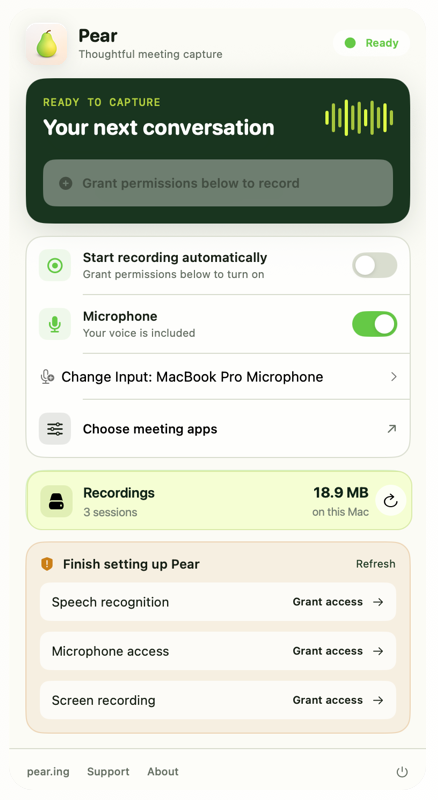
A simple workflow for the meetings you want to return to.
Open Pear from your menu bar and select the app you want to record. Include your microphone to capture your side of the conversation.
Pear captures the audio while Apple’s on-device speech recognition turns speech into timestamped text.
After the call, open the session’s audio and transcript files on your Mac. Review the details when you need them.
Give Pear access once, then choose what to capture. You can also enable Auto-Record for supported meeting apps.
Setup help and supported appsMicrophone captures your voice. Screen & System Audio Recording captures your selected app. Speech Recognition turns speech into text. Pear guides you through setup.
Pear’s normal workflow keeps audio, transcripts, and session details in its app container on your Mac. No Pear account or remote transcription service is required. Read the privacy note.
Speech recognition can miss words. Use the timestamps and saved audio to check important details. Let the people in the meeting know before you record.
Pear for Mac. One purchase, with the current price shown in your App Store region.